wkhtmltopdf HTML to PDF Tutorial: Install, Examples, Errors and Migration
Quick Start
wkhtmltopdf is a command-line tool that converts HTML to PDF. It’s been around for years and is probably the most popular tool in it’s category.
To get started, you can download it from the wkhtmltopdf releases page on github.
Important: wkhtmltopdf's last release was in 2020, its repository was archived in January 2023, package managers are removing it, and known vulnerabilities remain unpatched. Never give it untrusted HTML or URLs. Maintaining a stable, isolated installation can be reasonable while you migrate, but do not choose it for a new implementation. See the current alternatives to wkhtmltopdf for maintained options.
Basic usage:
# Convert a website to PDF
wkhtmltopdf https://transformy.io transformy.pdf

# Convert local HTML file
wkhtmltopdf index.html output.pdf

# Add margins and headers
wkhtmltopdf --margin-top 20mm --header-right "Page [page]" https://transformy.io output.pdf
What is wkhtmltopdf?
wkhtmltopdf is a command-line tool that converts HTML to PDF using the QT WebKit rendering engine. Similarly to a browser, it can render HTML, CSS and Javascript. It comes with a very easy to use API, runs headless, and is relatively easy to integrate into your existing stack. The license (GPL v3.0) is also very permissive.
Be warned though: wkhtmltopdf relies on QT webkit which isn’t actively maintaned anymore. This means that rendering issues might pop up considering how fast web technologies evolve. Sites built with modern JavaScript frameworks or SPAs (React, Vue…) in particular might not render as expected. However, for most HTML documents and simpler websites, it works really well.
Installing wkhtmltopdf
First off you’ll need to install the package on your machine.
macOS
On macOS this used to be straightforward usign brew. But because wkhtmltopdf hasn’t been updated in a while, running brew install --cask wkhtmltopdf will give you the following error message:
Error: Cask 'wkhtmltopdf' has been disabled because it is discontinued upstream! It was disabled on 2024-12-16.
What you need to do instead:
- Head over to the releases page and download the relese for macOS.
- Double click on the .pkg file
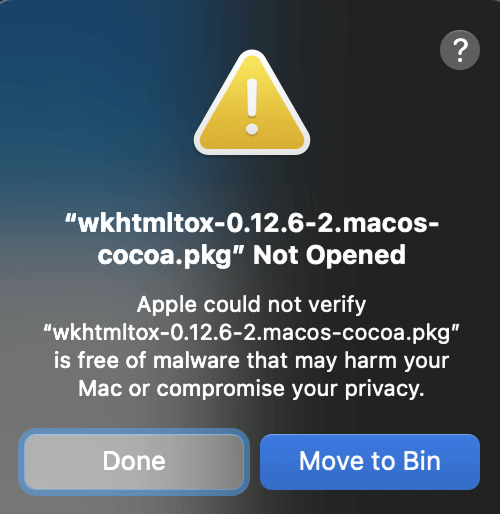
- You’ll likely see another error: “Apple could not verify “wkhtmltox-0.12.6-2.macos-cocoa.pkg” is free of malware that may harm your Mac or compromise your privacy.”
- Close the error window and head on over to System Settings -> Privacy & Security -> Scroll down to Security. There, you’ll see a message saying the packages was blocked. Click on “Open Anyway”
- The installer should now have launched and you can continue with the installation.
Windows
For Windows installation:
- Download the installer from the releases page
- Run the installer
The installer will add wkhtmltopdf to your PATH automatically
Linux
On Linux the exact steps for installation will vary depending on your distro. Here’s how to get it running on Ubuntu 22.04
This is an example using amd64. Depending on your architecture you will need a different version. You can find all available versions on the releases page.
wget https://github.com/wkhtmltopdf/packaging/releases/download/0.12.6.1-2/wkhtmltox_0.12.6.1-2.jammy_amd64.deb

sudo dpkg -i wkhtmltox_0.12.6.1-2.jammy_amd64.deb
Finally, make sure you don’t have any broken dependencies and run:
sudo apt install -f
Ubuntu 25.04 package removal
Ubuntu 25.04 has no published wkhtmltopdf package, so apt install wkhtmltopdf cannot install it. Do not add an older Ubuntu repository or download an unverified third-party binary as a workaround. Keep a legacy deployment in a supported, isolated image you already test, or migrate the rendering step.
Verify installation
wkhtmltopdf --version
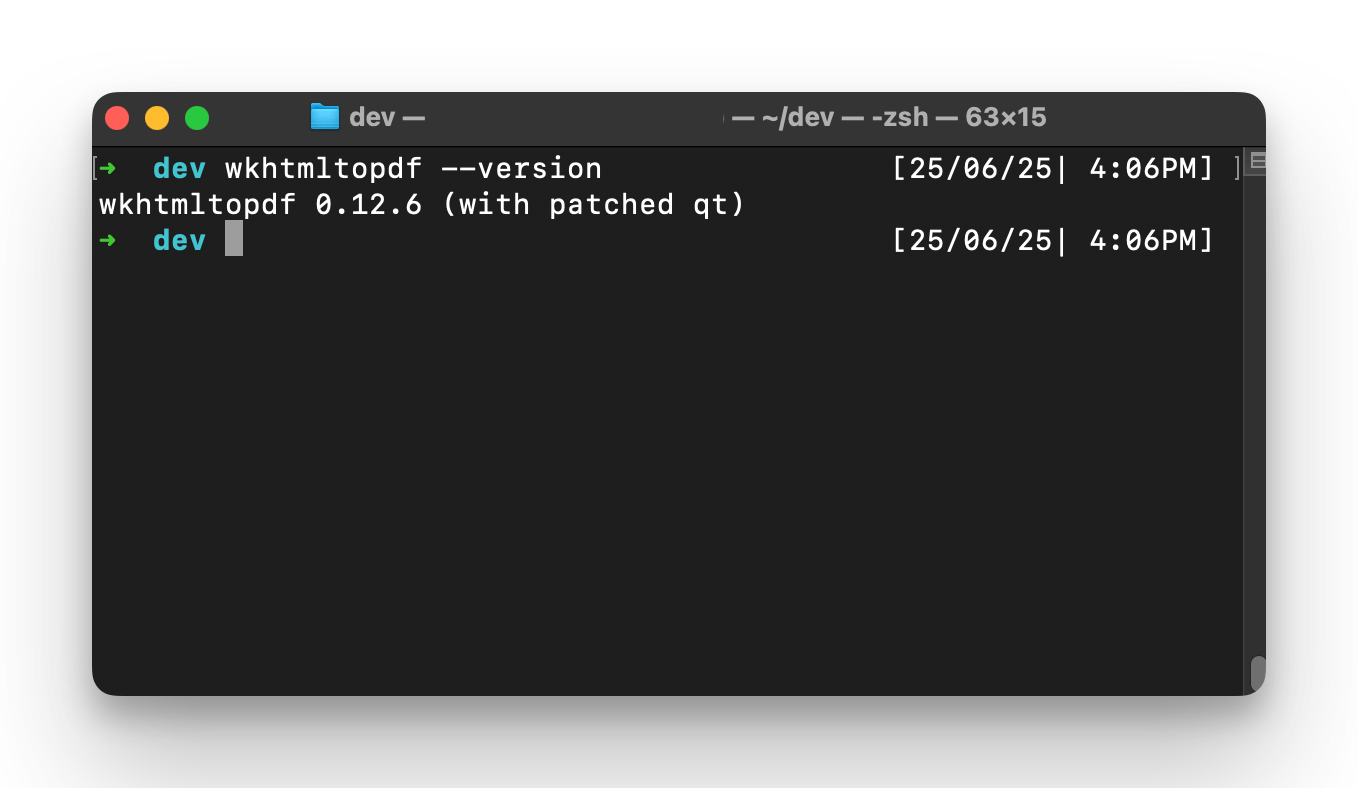
If you see the version info, you’re good to go.
How to use wkhtmltopdf
Now that you have wkhtmltopdf installed, let’s look at how to use it. Every wkhtmltopdf command follows this structure:
wkhtmltopdf [options] <input> <output>
Common use cases
Converting a website to PDF:
wkhtmltopdf https://transformy.io/examples/blog/1/ blog-post.pdf
Converting a local HTML file:
wkhtmltopdf invoice.html invoice.pdf
Combining multiple pages into one PDF:
wkhtmltopdf page1.html page2.html page3.html combined.pdf
PDF with page numbers:
wkhtmltopdf --header-right "Page [page] of [toPage]" --header-line \
            --margin-top 15mm https://transformy.io/examples/blog/1/ output.pdf
The text-header tokens are case-insensitive: [page] is the current page, and both [topage] and [toPage] produce the total page count. The manual names the token [topage], while its examples often use [toPage]. Use the same tokens with text footers such as --footer-center "Page [page] of [toPage]".
wkhtmltopdf advanced examples
So far I mostly covered basic usage commands which cover the most common use cases, but there’s also many advanced features in wkhtmltopdf which offer a lot of customization options for your PDFs.
Basic Page Layout Options
Setting page size and orientation:
# A4 landscape orientation
wkhtmltopdf --page-size A4 --orientation Landscape https://transformy.io/examples/blog/1/ blog-landscape.pdf
A blog post is probably not the best use case for landscape page orientation, but here’s the result:
# A4 portrait - standard document format
wkhtmltopdf --page-size A4 --orientation Portrait https://transformy.io/examples/invoice/1/ invoice-portrait.pdf
Portrait is also the default mode. The invoice looks like this:
Custom margins
You can set custom margins for all four sides of your document.
wkhtmltopdf --margin-top 20mm --margin-bottom 20mm --margin-left 15mm --margin-right 15mm https://transformy.io/examples/blog/1/ custom-margins.pdf
Adding Headers and Footers
Adding custom headers and footers is also possible. For example, you can use this to add page numbers or a document title:
# Simple page numbers
wkhtmltopdf --footer-center "Page [page] of [toPage]" https://transformy.io/examples/blog/1/ blog-with-pages.pdf
# Professional header with title and page numbers
wkhtmltopdf --header-left "Company Report" --header-right "Page [page] of [toPage]" \
            --header-line --margin-top 20mm https://transformy.io/examples/blog/1/ professional-header.pdf
Working with Table of Contents
For long documents, you can auto-generate a table of contents. The table is based on the heading tags in the HTML.
# Document with cover page and TOC
wkhtmltopdf cover title.html toc https://transformy.io/examples/blog/1/ https://transformy.io/examples/blog/2/ content-with-toc.pdf
# TOC with custom title
wkhtmltopdf toc --toc-header-text "Table of Contents" https://transformy.io/examples/blog/2/ content-with-toc-title.pdf
Controlling Page Breaks
Sometimes you need to control where pages break. While this isn’t something that you can set using the wkhtmltopdf command line tool, you can easily enforce this change with some minor changes to your styling. You’ll need to add either page-break-before or page-break-inside to your markup.
<!-- Force a new page -->
<div style="page-break-before: always;">
    <h2>Chapter 2</h2>
    <p>This starts on a new page</p>
</div>

<!-- Keep content together -->
<table style="page-break-inside: avoid;">
    <tr><td>This table won't break across pages</td></tr>
</table>
Advanced Options
JavaScript-heavy sites:
Many modern websites load content dynamically with JavaScript. By default, wkhtmltopdf waits 200ms to capture the page, which in some cases might not be enough. You can overwrite this:
# Give JavaScript time to execute
wkhtmltopdf --javascript-delay 3000 https://transformy.io/examples/blog/1/ report.pdf

# Wait for specific status
wkhtmltopdf --window-status ready https://transformy.io/examples/blog/1/ output.pdf
The delay is in milliseconds. Start with ~3000 (3 seconds) and adjust based on the site’s loading time. Obviously this will have an impact on the total processing time.
In some cases you might not want to run javascript at all. You can disable it with --disable-javascript.
Authentication:
If you need to convert pages that require login:
# Basic auth
wkhtmltopdf --username user --password pass https://transformy.io/examples/blog/1/ report.pdf

# Cookie-based auth
wkhtmltopdf --cookie session_id "435843285" https://transformy.io/examples/blog/1/ report.pdf

# Bearer token
wkhtmltopdf --custom-header "Authorization" "Bearer <token>" https://transformy.io/examples/blog/1/ report.pdf
Quality and file size:
# High quality for printing
wkhtmltopdf --dpi 300 https://transformy.io/examples/blog/1/ high-quality.pdf

# Optimized for web
wkhtmltopdf --lowquality --image-quality 75 https://transformy.io/examples/blog/1/ optimized.pdf
HTML Headers and Footers
For complex layouts, use HTML files for headers and footers:
# Create header.html and footer.html files
wkhtmltopdf --header-html header.html --footer-html footer.html \
            --margin-top 20mm --margin-bottom 20mm \
            https://transformy.io/examples/blog/1/ custom-layout.pdf
Your header.html can include images, styling, and complex layouts. HTML headers receive page and topage through their URL query string, so use those values instead of putting [page] and [toPage] directly in the HTML:
<!DOCTYPE html>
<html>
<head>
    <style>
        body { margin: 0; font-family: Arial; font-size: 12px; }
        .header { border-bottom: 1px solid #ccc; padding: 10px; }
    </style>
    <script>
        function fillPageNumbers() {
            var vars = {};
            var query = document.location.search.substring(1).split('&');
            for (var i = 0; i < query.length; i++) {
                var pair = query[i].split('=', 2);
                vars[pair[0]] = decodeURIComponent(pair[1]);
            }
            document.querySelector('.page').textContent = vars.page;
            document.querySelector('.topage').textContent = vars.topage;
        }
    </script>
</head>
<body onload="fillPageNumbers()">
    <div class="header">
        <img src="logo.png" height="30px" style="float: left;">
        <div style="float: right;">Page <span class="page"></span> of <span class="topage"></span></div>
        <div style="clear: both;"></div>
    </div>
</body>
</html>
Migrating wkhtmltopdf flags to modern Chrome
The HTML-to-PDF API documentation has the full parameter reference. These common flags map as follows:
| wkhtmltopdf | Headless Chrome/Puppeteer | Transformy |
|---|---|---|
--page-size A4 |
format: "A4" |
"page_size": "a4" |
--orientation Landscape |
landscape: true |
"orientation": "landscape" |
--margin-top 20mm |
margin: { top: "20mm" } |
"margin": { "top": "20mm" } |
--header-html header.html |
displayHeaderFooter, headerTemplate |
"header": { "html": "..." } |
--footer-center "Page [page] of [toPage]" |
pageNumber and totalPages classes |
{{page}} and {{pages}} |
--javascript-delay 3000 |
Wait for a selector or page state | JavaScript settling and wait controls |
--cookie name value |
page.setCookie(...) |
"cookies": [...] |
--custom-header Name Value |
page.setExtraHTTPHeaders(...) |
"http_headers": { "Name": "Value" } |
Common issues and solutions
While implementing wkhtmltopdf for transformy, I’ve run into some small issues.
Poor font rendering
Installing proper fonts usually fixes this:
# Ubuntu/Debian
sudo apt-get install fonts-liberation

# CentOS/RHEL
sudo yum install liberation-fonts
CSS files not loading
Ensure your HTML uses absolute paths or includes a base tag. If you don’t own the website and aren’t able to add a base tag, you might need some pre-process to edit the html before passing it to wkhtmltopdf.
<base href="https://transformy.io/">
Exit code -11: QPaintDevice cannot destroy paint device that is being painted
Exit code -11 means wkhtmltopdf crashed. The log may also contain QPaintDevice: Cannot destroy paint device that is being painted. Check file-handle and memory limits, verify the wkhtmltopdf build, and test a smaller report without repeated headers and footers.
ulimit -n
If a smaller report works, reduce the report size or raise the relevant process limits.
When wkhtmltopdf might not be enough
wkhtmltopdf is a workhorse, but there’s some scenarios where you might need to grab a different solution.
For one, it doesn’t support interactive PDF forms. If that’s something you need I recommend trying pdftk.
As mentioned earlier though, the biggest issue will be javascript heavy websites. In that case the a better solution is to use Headless Chrome to print your pages.
If an existing, isolated installation still renders trusted templates correctly, you can keep it temporarily while planning a migration. For a maintained self-hosted route, use Headless Chrome through Puppeteer or Playwright, Gotenberg for a self-hosted HTTP service, or WeasyPrint for JavaScript-free documents. If you do not want to operate browsers, use a managed HTML-to-PDF API.